





Logo Stock Icons HomeDownloadsBuyContact  
Home
Ready icons
Custom Image Design
Downloads
Order
Support
Toolbar icons

Premium Quality
Icons

Get your high quality
and affordable icons!

www.perfecticon.com

Professional Stock
Icons

More than 9999 unique
icons. Low price
& High quality.

www.perfect-icons.com

Standard Icons
The widest variety of
professionally designed,
royalty-free stock icon
collections.

standard-icons.com

Quality
Toolbar Icons

Download thousands
of toolbar and menu
icons now!

toolbar-icons.com

Buy Icon Images
Application icon
library. 16x16 icons
and other sizes.

toolbar-icons.com
Multimedia Icons for Vista
 View Icon Set  Download  Purchase


 Multimedia Icons for Vista

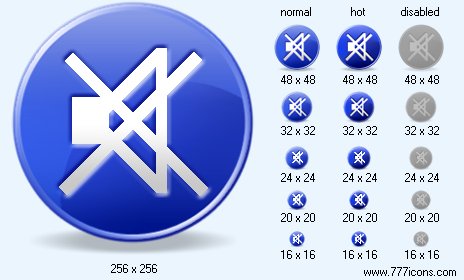
Mute SH Icon Images

Mute SH Icon

Previous icon View icon set

Next icon


Mute SH icon
Mute SH Icon

 Add Mute SH icon to cart

 Purchase Mute SH icon for $5.00 now!


Image sizes: 256x256, 128x128, 64x64, 48x48, 40x40, 32x32, 24x24, 20x20, 16x16
File formats: BMP, GIF, PNG, ICO

 Purchase entire Multimedia Icons for Vista now!

 View Multimedia Icons for Vista now!

 Download demo icons


Making Icons with Aqua Effect

Creating a brand-new image having the renowned "aqua" effect is easier than you think – if you have proper tools. You can draw an icon from scratch by only using a free, small and easy icon editor.

Drawing a fresh new icon featuring the renowned "aqua" effect is easier than you think – if you use proper tools. To create an image from scratch, a professional, small and simple icon editor such as IconLover 5 (aha-soft.com) is all you really need.

For an instance, let us make an aqua-style icon for "Add", a glass ball with a "plus" sign in it. To start, you’ll need to draw a circle of a certain color. Pick the color you want from the Color properties menu. By the way, you can always save a color by adding it to Custom Colors; this comes very handy if you need to draw a matching set of icons.

Using the Transparency bar or with one of the Transparency presets, set your new icon’s transparency. For this tutorial, the ball has to be fully opaque. In the same way, you can set background color; for simplicity’s sake, we’ll keep the background transparent for now.

To make a circle of your chosen color, select the Filled Ellipse tool by clicking the Filled Ellipse icon in the Tools menu, which is on the left of the drawing area. With the left mouse button down, move the mouse cursor within the drawing area to draw an ellipse. The ellipse changes its size as you move the mouse. To create an ideal circle, hold Shift while drawing. That’s it, you have just created a circle!

In order for our flat circle to start looking like a crystal ball, we’ll need to add some special effects. There are tons of those built into IconLover! You can add shadows, gradients, transparency masks, and of course, the renowned ‘glass reflection’ look employed by the aqua effect.

To make an icon matching Apple’s Aqua style, you’ll need to draw a reflection and a shadow to the circle. This can be done quite easily by simply selecting Aqua from the Effects menu. Keep all sliders at their defaults for now, and you’ll get a beautiful shiny sphere as a result.

Now let’s add an artist’s touch and make your icon truly unique. Go back to that Aqua dialog and have a look at the settings. There are multiple values available to tweak, allowing you to create something never seen before. Go ahead and tweak the sliders to see how your icon can look!

As a final touch, let’s add some dimension to your newly created icon. While glowing and shiny, it still looks like a button rather than a crystal ball. Let’s fix that by throwing a drop-down shadow! To add a shadow effect to your icon, click "Drop shadow" from the Effects menu. You can stick to defaults, or tweak the values around to get a flat button, a lens, or a ball. The look depends on the size of the shadow, its distance from the subject, and the angle at which it falls to the surface.

To embed the ‘plus’ sign into the icon, click on the Text tool icon in the left Tools menu or press "T" to get the text properties window. Make sure the "Image transparency" box is checked. This box means that your text will not be transparent, only the area around it will be. Changing the "Use semi-transparency" setting gets your text the same level of transparency your primary color has. Type "+", and you’ll get the ‘plus’ sign inserted into the ball.

Voila! You’ve just created a crystal ball that matches the famous Aqua style! All you needed was a professional icon editor, IconLover 5, a few mouse clicks and a couple of minutes of your time. Easy!

Other Icon Packs

Individual Ready Icons

You can buy individual icons to suit your needs. Each icon is $5 when purchased individually.

 Icon Usage Agreement

Download Multimedia Icons for Vista


Blue Icon Library Instantly refine your software with readily available, professionally created icons. Blue Icon Library holds dozens of icons that are designed to look strict and stylish.

Paper Icon Library Paper Icon Library will help the user to refine their projects with smart and stylish icons. The set includes icons for Form, Text document, Table, New, Report and a lot more.

People Icons for Vista People Icons for Vista illustrate people of various occupations, groups and family status. They are crafted in Vista style and are available with or without shadows. Icons are provided in various formats and sizes.

Health Care Icons Health Care Icons is a set of beautifully crafted icons associated with the field of health service. The images are delivered in a variety of formats and sizes.

Transport Icon Set Transport Icon Set. A pack of bright and distinctive icons depicting all transport types for the transport and travel industries.