



 |
|
 | |
 | |
 | |
 | |
 | |
 | |
|
 | ||||||||

|

 |
 |
|

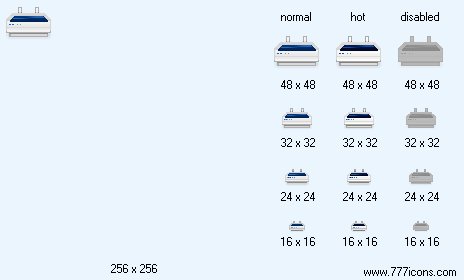
 Dot-Matrix Printer Icon |

|
 Add Dot-Matrix Printer icon to cart
Image sizes: 48x48, 32x32, 24x24, 16x16
File formats: BMP, GIF, PNG, ICO
 Purchase entire Classic Hardware Icon Set now! View Classic Hardware Icon Set now!
 Download demo icons
Professional Icon Package for Financial Products
Business Toolbar Icons are aimed at software developers making products for clients working in the financial industry. Drawn in strict accordance with all Microsoft’s guidelines, Business Toolbar Icons will make your applications look well thought of and consistent throughout.Designing applications for business customers working in the financial industry lays certain requirements on the look of the product. Financial customers expect strict, reserved and consistent appearance of the product. Ordering graphics for financial software to an in-house designer or a third-party design studio can easily result in a hefty bill, let alone the significant time spent on doing the specs and waiting for the icons to arrive.
Obtaining a set of stock icons puts you in a better position, cutting your bill significantly while reducing the wait to literally zero. Ready-made icons are immediately available, and are offered in matching sets to ensure the much needed consistency throughout your product.
Business Toolbar Icons by Perfect Icon are targeted to software developers producing products for clients working in the financial industry. Drawn in strict accordance with all Microsoft’s guidelines and recommendations, Business Toolbar Icons will make your products look well thought of and consistent throughout.
Sharing common features and colors, Business Toolbar Icons include more than 300 icons of various items that are likely to appear in a common financial application. The set of financial icons offers icons such as Shopping Cart icon, Sale icon, Handbags icon, Store icons, Accounting icons, Finance icons, Ship icons, Purchase icon, Goods icon, Bag icon, Investment icon, Money icon, a variety of financial icons, and Report icons among hundreds of other images. A number of currencies is also depicted, including images for Dollar, Euro, Pound Sterling, and Yen in notes and coins. Means of payments such as credit and debit cards, checks and cash are also presented.
A single order will deliver all three hundred graphics in a variety of file formats, color resolutions, sizes and image styles. Resolutions of 16x16, 24x24, 32x32, and 48x48 pixels are provided. All graphics are supplied in 256 colors and as True Color images with semi-transparency. All images come in ICO, PNG, GIF, and BMP file formats. The financial icon set is a sweat deal for software developers looking for a bargain.
Business Toolbar Icons are available for instant preview and immediate purchase at perfecticon.com
Copyright © 2006-2022 Aha-Soft. All rights reserved.
|



 More info


